Using materials
Material types define the property type of a material. By adjusting material property values defined by a material type, you set the appearance of a material. Each material type has a vertex shader and a fragment shader, which set the type of properties you can use in a material.
Creating a material
To create a material:
- If you do not already have a material type for the material you want to create, add a material type to your project. See Adding a material type to your project.
-
Create the material and set its material type in one of these ways:
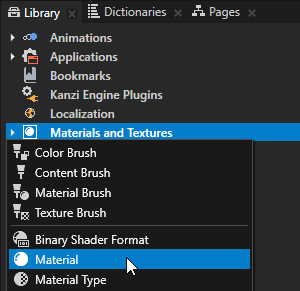
- In the Library press Alt and right-click Materials and Textures, select , and in the Properties set the Material Type property to the material type you want to use for this material.

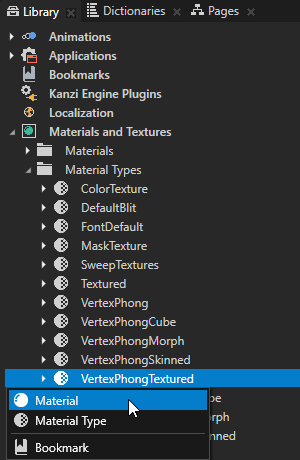
- In the Library > Materials and Textures > Material Types press Alt and right-click the material type you want to use for the material you create and select .
Assigning a material to an object
You can assign a material to an object in these ways:
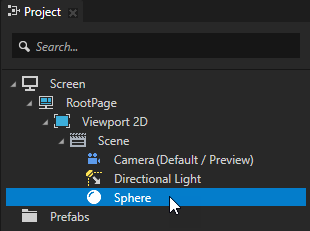
- Drag the material from the Assets and drop it on a node in the Preview or Project.
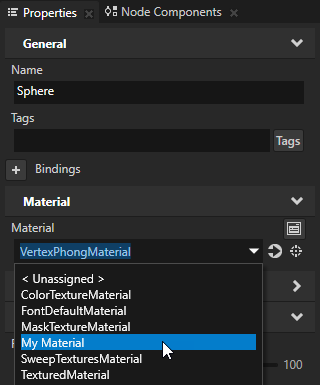
- In the Project select the node to which you want to assign a material and in the Properties set the Material property to the material you want to use for the selected node.
Adjust the appearance of 3D nodes
Use materials to adjust the appearance of 3D nodes. After you set a node to use a material, add and set to the node the properties which you want to modify in the material. That way you can use the same material and modify the appearance of 3D nodes.
To adjust the appearance of 3D nodes:
- In the Project create or select any 3D node the appearance of which you want to adjust.
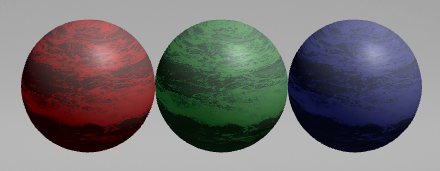
For example, press Alt and right-click the Scene node, create a Stack Layout 3D node and inside it create three Sphere nodes.
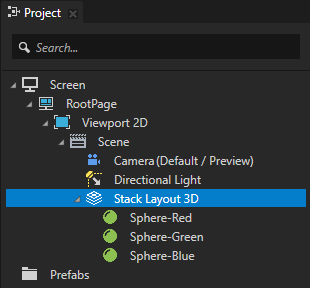
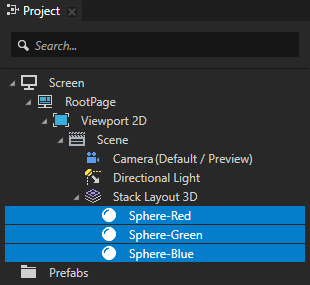
- In the Project select the 3D nodes the appearance of which you want to adjust, and in the Properties set the Material property to the VertexPhongTexturedMaterial material.
You apply the VertexPhongTexturedMaterial material to the nodes you selected in the Project.
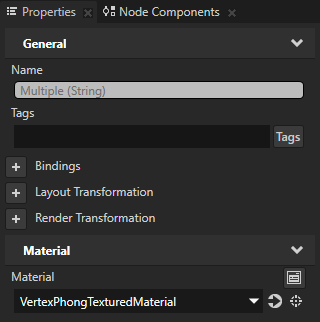
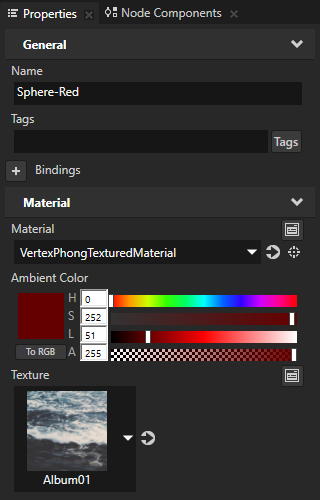
- For each 3D node you selected in the previous step, in the Properties add and set the properties with which you want to change the appearance of the node. Use the properties from the Material category to adjust the materials.
For example, to change the ambient color and texture of the material for the selected node, add and set the Ambient Color and Texture properties.
See also
Tutorial: Materials, textures, and rendering
Using material types
Material types and materials
Using brushes
Factory Content assets

Open topic with navigation